We love the plugin autoupdate functionality in WordPress, but we really don’t want them to update on a Saturday night, potentially bringing a site down and messing up our weekend.
So it’s not a specific time, but rather it’s checking a transient to see when it last happened. It’s also not reliant on WP_CRON.
This is good news, because we don’t have to worry about hitting a 12 hour window – it will just check if it’s happened in the last 12 hours and then run if it’s in a predefined window we set.
How do we set time windows for updates?
Method 1: All Autoupdates
Method 2: Plugins Only
Note that this second method respects the autoupdate setting within business hours, so you can still fully disable autoupdates for specific plugins individually.
Customer wanted to offer free shipping on any orders of at least $25. Additionally, they wanted any subscription renewals to charge shipping normally – the free shipping should only apply to the initial order.
To solve this, I’ve suggested using a free shipping coupon, which is applied automatically to the cart if it’s $25 or more. The end result is:
Free shipping on initial cart (if it is at least $25)
Normal shipping charged on any subscription renewals for subscription products purchased.
Step 1 – Create Free Shipping Coupon
Go to WooCommerce > Coupons > “Add coupon”
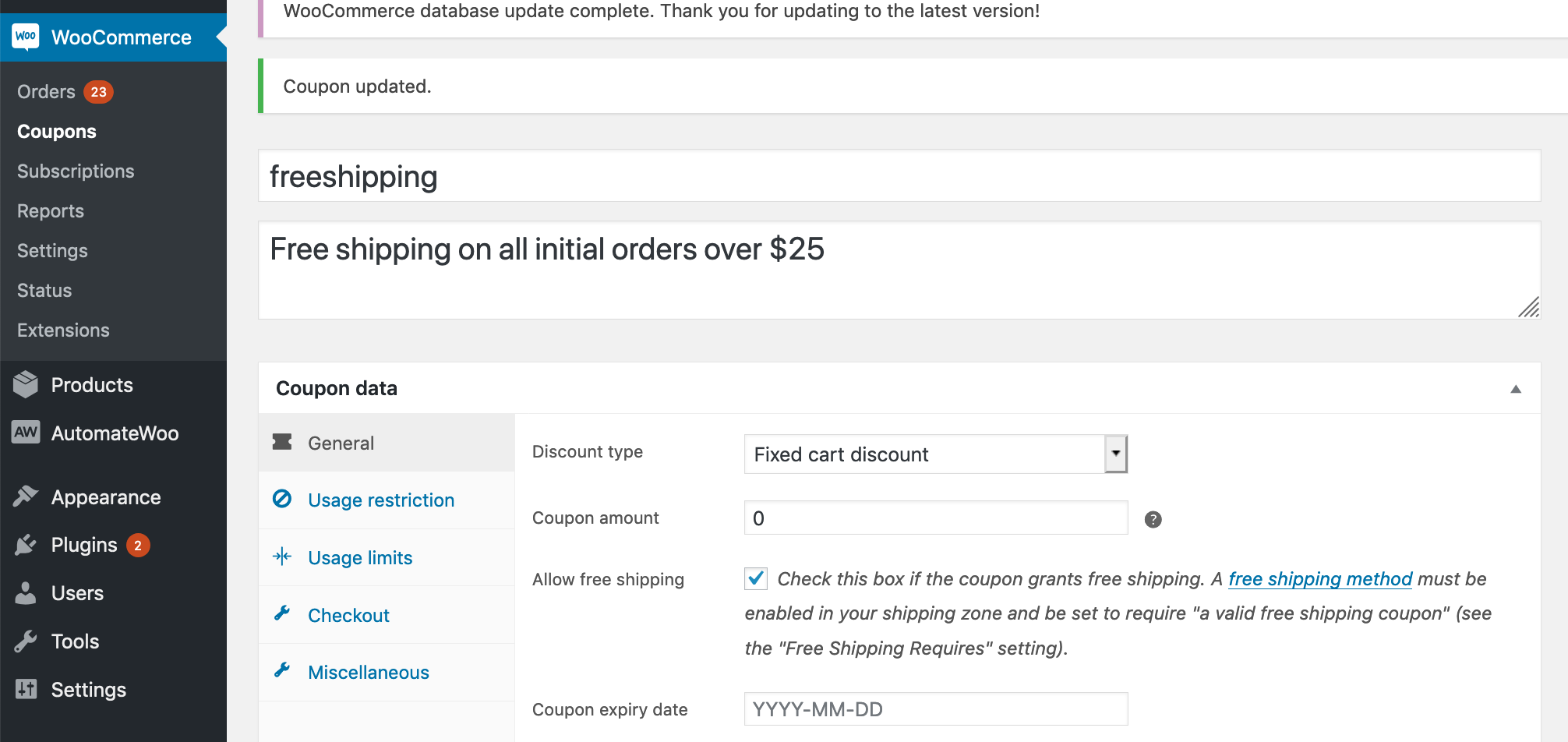
Create a fixed cart discount named “freeshipping”
Set it to a $0 discount, and click “grants free shipping”
Optionally limit coupon to a $25 minimum
Create a freeshipping coupon
NOTE: For free shipping coupons to work, you have to have a free shipping option set in your shipping settings. Be sure to select “Free shipping requires a valid coupon” for this shipping option.
Step 2: Auto-apply coupon
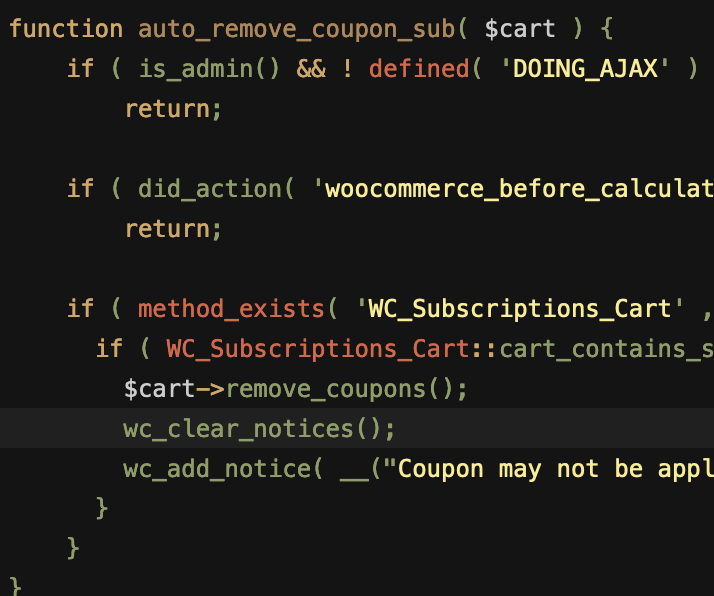
To auto-apply a coupon to the cart without using a 3rd-party plugin, you can add this snippet to your theme’s functions.php file. This particular snippet is set up to auto-apply on all initial orders of at least $25, but it can be edited as needed to conditionally check for quantities, products, etc.
The end result is a free shipping coupon that is automatically applied to the initial order, but not applied to the recurring cart.
Here’s a mini-plugin I wrote which extends the functionality of WooCommerce Subscriptions. It restricts subscription products to a certain number of total active (unended) subscriptions on a site.
Use case: store owner wants products and subscriptions to have a one-to-one relationship, i.e. each product should only be subscribed to once. For example, subscription product is a child to be sponsored, and only one subscriber should be sponsoring that child at a time.
This plugin creates and maintains a list of products that have unended subscriptions associated with them, then makes these products unpurchasable from front end to make sure that the subscription product can only be subscribed to a certain number of times. It doesn’t change ability to check out with product, so that customer can pay for failed order through cart, and manual renewals are unaffected.
Note: This plugin is designed to work independently of the
WooCommerce inventory system, and so inventory should be disabled for
all subscription products, or you may have problems with customers not
being able to pay for failed renewal orders manually.
Go to Plugins > Add New > Upload administration screen on your WordPress site
Select the ZIP file you just downloaded
Click Install Now
Click Activate
How-to
Set Product Restriction
There are two ways to set a product restriction, either storewide or on a product level. Setting a product level restriction is more specific and will override the storewide default. If you set either to ‘0’ or leave them empty, they are considered not set.
Storewide Restriction
You can set a default storewide restriction which will apply to all subscription products by going to WooCommerce -> settings -> Subscriptions (tab) -> Product Restriction
Product-level Restriction
You can also set a product restriction for a specific product by
editing the product, and clicking on the ‘Advanced Options’ tab in the
Product Data metabox. This will set the product restriction on a product
level for simple and variable subscription products. That means that
the restriction applies no matter which variation of a variable product
is subscribed to.
To activate the product-level restriction, you must click the “Activate product-level restriction” checkbox.
If “Activate product-level restriction” checkbox is checked, but the
restriction quantity is blank, then no restriction will be applied to
this product, even if there is a systemwide default set elsewhere.
Renewals and Switching
Renewals and Switches are taken into account when checking if a purchase should be restricted.
Renewals
Automatic renewals are not restricted at all, and should process normally. Similarly, manual renewals will still allow the product to be purchased/renewed through the cart.
Subscription Switching
Switching is accounted for when checking restrictions. When switching
between simple subscription products, the checks still occur as normal.
When switching between variations of the same product, the restrictions
are ignored, allowing the switch to occur.
Visibility
When displaying a product in the catalog or archive pages, this plugin will hide the product if it is restricted, and if the ‘Out of stock visibility’ option is checked in WooCommerce settings -> products -> inventory tab.
Warning Messages
There is currently no way to customize the warning message presented
when a restriction is encountered. Additionally, when product variations
are deemed not purchasable, the default WooCommerce alert box is
triggered, which is not descriptive of why.
For this reason, we recommend you add in some descriptive text to
your product description indicating that it is restricted, and why.
Additional Notes
Restrictions don’t apply retroactively, only to future purchases. In
other words, any given purchase is checked against the current
restriction and current number of active site-wide subscriptions. No
already-existing subscriptions will be cancelled or suspended if you
change the restriction number. Future purchases will be checked against subscriptions that existed before the plugin was activated, however.
Deactivating the plugin will stop the restriction checks, and will
delete the cache. However, the restriction option values (set in the
WooCommerce settings tab or product options) will stay in place in case
you choose to reactivate the plugin in the future.
Troubleshooting
To view the current cache for troubleshooting purposes, navigate to the ‘plugins’ page and click the ‘view cache’ option.
We recently witnessed some issues occurring when customers using WooCommerce and Subscriptions deleted their payment methods (when they have a credit card “on file”). When they also have active subscriptions using the card they just deleted, most customers don’t realize that they also have to update their card for each of the active subscriptions.
We’ve added a more robust way of dealing with this to the Subscriptions roadmap, but in order to stem the bleeding from the immediate issue, I whipped together a mini-plugin that will pop up an alert whenever a customer deletes a payment method.
An old acquaintance called up asking for help: he was rebranding his family business with an emphasis on heavy machinery and he wanted help with a website and logo. I said sure, as long as he wouldn’t mind using a pre-made theme.
It had been so long since I had tried to quickly throw together a website that I had forgotten how amazing it is to be able to purchase a decent commercial theme and deploy a site so quickly. We pulled a heavy-machinery-looking font and color scheme and had a site up on super short notice. Fun, so fun.
Acted as lead developer on complete redesign and overhaul of hospital website as they transitioned to an umbrella health organization.
We used WordPress as a CMS to provide a user-friendly experience for the non-tech-savvy content administrators. Heavy use of custom fields allowed us to provide places for lots of custom editable content while preventing design creep.
The entire project took nearly a year to complete, and involved cutting a many-thousand-page website down by a factor of ten to allow for future growth in a much more organized fashion.
Last year, we installed a wi-fi enabled weather station on our property: the Rainwise MK-III-LR. Every few seconds, it sends updated weather data to the cloud. We chose to route the data to Wunderground, allowing it to be a peer among many personal weather stations in the area, which also opens up the data to the public.
It turns out that the Wunderground API is pretty robust, and I was considering writing a WordPress plugin that would allow you to specify any weather station and have the information display on your site. Unfortunately, the API limits each user to a fairly small amount of monthly calls, unless you want to pay real, cash money. Therefore, to use the plugin, you’d have to sign up for a developer account on Wundergound and use your own API token, which might be a bit above the average blogger’s desire.
Until I find a better solution, I’ll post the code here that I used to display my personal weather data on the farm website.
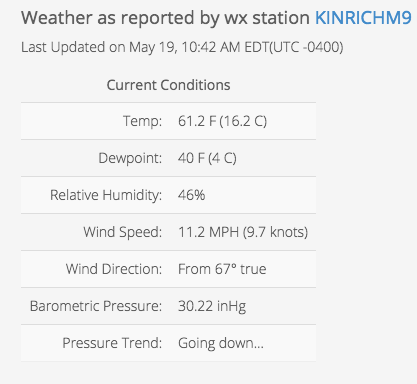
First, here’s the display on the front end:
To generate the view on the front end, first I added some HTML.
Sometimes, a simple solution is all that is needed for a simple problem. As is common for developers and programmers of all varieties, I can’t help but enjoy finding a clever solution to a particular problem, but that pales in comparison to the joy that I obtain from coming up with a dead simple, smack-you-in-the-forehead answer. I call that being smart, not clever.
The farm property that I live on had an issue with multiple people wanting to use the land during hunting season, and no communication about who needs what area. Because two of the people were hunting, no other people could use the same area at the same time.
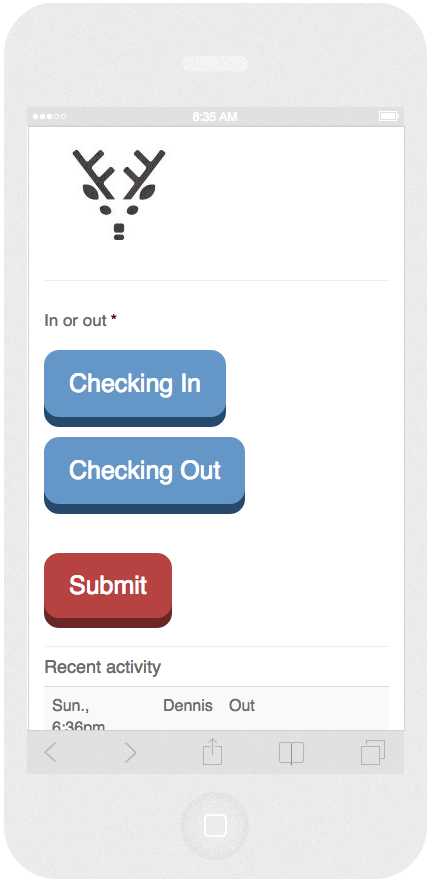
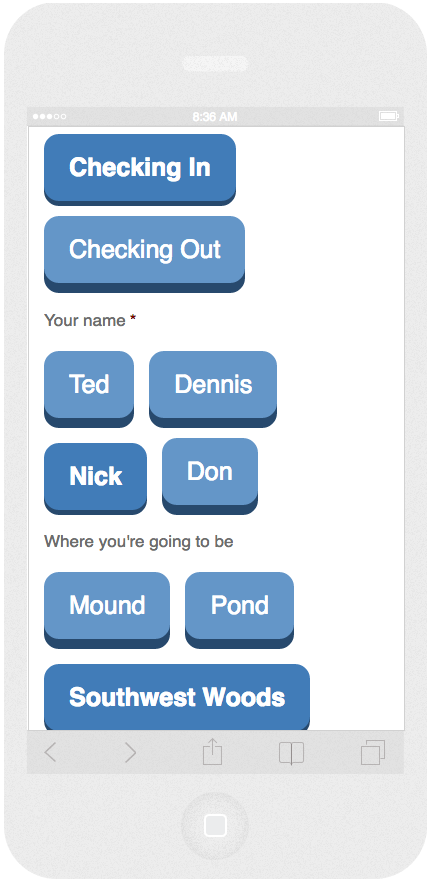
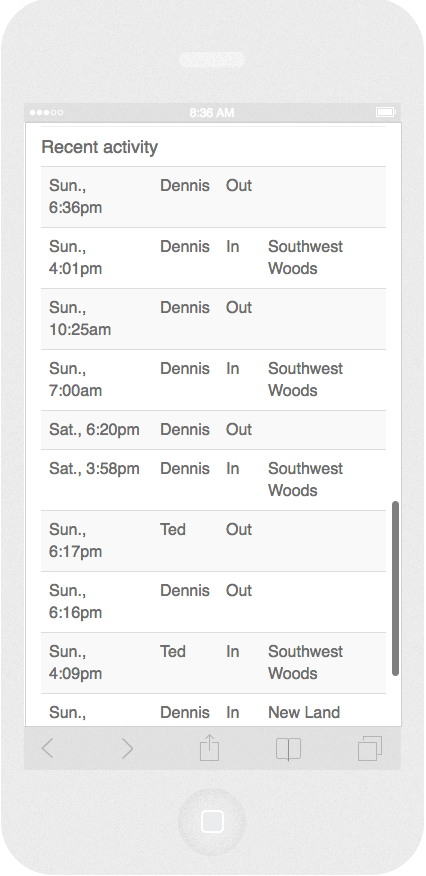
First, we tried a whiteboard, but nobody used it. So I created the electronic equivalent of a whiteboard, and it was wildly successful. I made a simple form with large, glove-friendly buttons (think hunter at 6am using his iPhone in an Otter Box), and a simple list showing who went where at what time. It would then be up to each person to see where the other(s) had gone and avoid their area.
It didn’t require a feat of programming. It didn’t require astounding design. It wasn’t an interactive map that required GPS permissions. It simply matched the problem at its level of simplicity, and therefore succeeded. It just required me putting my “clever” ego aside and letting the simple solution work.
I worked as lead developer on an informational site for the Degree Qualifications Profile, a joint project between the Lumina Foundation and the National Institute for Learning Outcomes Assessment (NILOA). The primary goal was to present the concept and overview of the project in an easy-to-understand fashion, while still providing a depth of resources and information if the user dug deeper.
We were able to create a simplified front page that presented easy entry points into the site, as well as a variety of introductory materials to make clear what the DQP was. WordPress has allowed the client to maintain and update their own site with minimal style and content bloat.
This spring, I was the sole developer for creating a WordPress publishing tool for billion-dollar education policy foundation. For the last six years, they have been using a custom MVC PHP framework, and we aided their transition into the era of responsive designs and ability to manage their own content.
I was the sole developer for the online storefront for a cremation products vendor. We quickly settled on WooCommerce as the most robust e-commerce platform, and though the designers based their design on a commercial theme, we quickly decided that the custom functionality would require us to create our own, while starting with the theme as the basis for our code.
The store handles around $20,000 of sales per month, with multiple managers handling sales and customer processing.