Blog

  • Programming a Simple Visual Approach in the CJ3/CJ4 Pro Line 21

    Programming a Simple Visual Approach in the CJ3/CJ4 Pro Line 21

    The CJ3 and CJ4 both use Pro Line 21 with an FMS‑3000‑series box, and Collins’ Citation FMS‑3000 operator’s guide and quick reference describe common procedures across these airframes. Before loading a visual, assume the following basic setup:

    • The destination airport is already in the active flight plan and set as DEST on the FMS.
    • The FMS is the selected lateral nav source on the PFD (FMS1/FMS2 as applicable) and the aircraft is navigating normally in LNAV along the route.

    Step‑by‑step: database visual approach (simplest method)

    1. On the CDU, press DEP/ARR to open the Departures/Arrivals page for your destination.​
    2. If you see departures, press DEP/ARR again until you see ARR for DEST at the top of the page.​​
    3. On the ARRivals page, select ARRIVE for your destination airport if prompted.​
    4. In the list of approaches, scroll down until you see the VISUAL approaches at the end of the list.​​
    5. Line‑select the VISUAL RWxx you want (for example, VISUAL RWY 34).​
    6. On the next page, check the RX (runway extension) distance in NM from the threshold (default is usually 5 NM).​
    7. If you want a different length final, type the new distance in NM in the scratchpad and line‑select it into the RX field.​
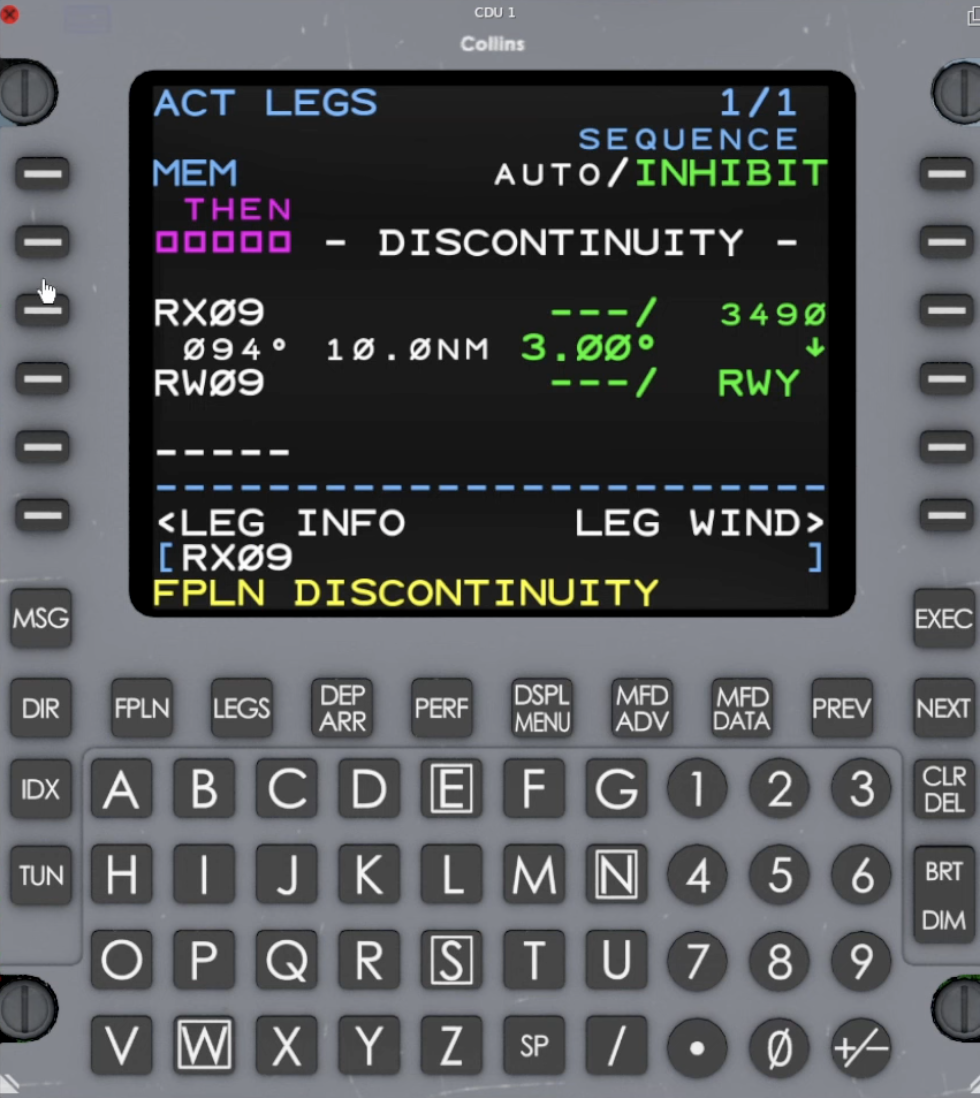
    8. Press LEGS and make sure the route flows from your last fix to RXxx, then to the runway, with no discontinuity you don’t want.​​
    9. If there is a DISCONTINUITY, line‑select the next waypoint (for example, RXxx) over the discontinuity to close it.
    10. When the path looks correct, press EXEC to activate the visual approach.​
    11. Verify on the MFD that you see the extended runway centerline from RXxx to the runway.​​

    References

    Video example (FMS‑3000/5000/6000, including loading a visual and RX waypoint):
    Hot Start Challenger 650 Collins Pro Line 21 FMS Basic & Advanced Procedures

    Reference quick‑reference guide (FMS‑3000/5000/6000 visuals and RX waypoint behavior):
    FMS‑3000 / 5000 / 6000 Quick Reference Guide: Basic Procedures

  • Better Subscription Switching – WooCommerce Subscriptions

    Better Subscription Switching – WooCommerce Subscriptions

    This free plugin overrides the grouped product template during a subscription switch so that there is a nice button interface showing the prices and which one is current.

    Plugin: Better Subscription Switching Buttons

    A WordPress plugin that improves the subscription switching experience in WooCommerce Subscriptions by providing a cleaner, more intuitive interface for switching between subscription plans.

    Description

    Better Subscription Switching Buttons replaces the default WooCommerce Subscriptions switching interface with a simplified table view that shows clear “Switch” buttons for each available plan. The current plan is clearly marked, and users can switch between plans with a single click.

    Currently only works with grouped products.

    Installation

    1. Upload the plugin files to the /wp-content/plugins/better-subscription-switching-buttons directory, or install the plugin through the WordPress plugins screen directly.
    2. Activate the plugin through the ‘Plugins’ screen in WordPress
    3. No configuration needed – the plugin will automatically override the grouped product template during a switch

    Usage

    1. Create a grouped product in WooCommerce
    2. Add subscription products as child products
    3. The plugin will automatically display the enhanced switching interface on the product page for logged-in users with active subscriptions
  • What are Exceptions and RuntimeExceptions in PHP?

    In PHP, Exception handling is a process used to manage errors in a controlled fashion. It was introduced in PHP 5 and it has become a standard practice for handling errors in more modern PHP code.

    An Exception in PHP is a standard class that can be used to signal that an error has occurred. When an exception is “thrown,” it represents an unusual or exceptional condition that has occurred in the code. It’s sort of like an SOS signal that can be caught and handled with special code known as a “catch” block.

    RuntimeException

    throw new RuntimeException();

    RuntimeException is a type of exception that represents errors which can only be detected during runtime. For example, this could include errors such as trying to access an array element that doesn’t exist, or maybe failing to open a non-existent file. RuntimeException is a subclass of Exception, which is more general.

    Exception

    throw new Exception();

    Exception is the base class for all exceptions in PHP. When you throw an Exception, you’re signaling that there’s a general error condition that you want to handle.

    Both of these are followed by the throw keyword, which in PHP signals that an exception is being thrown.

    What catches these thrown exceptions?

    To catch an exception, you must wrap your code with a try block, and immediately follow it with one or more catch blocks. Here is a simple example:

    try { // Code that may throw an exception 
        if ( some_bad_condition() ) { 
            throw new Exception( "Something went wrong" ); 
        } 
    } catch ( Exception $e ) { 
        // Handle exception 
        echo "Error: " . $e->getMessage(); 
    }

    How it works:

    • The try Block: You enclose the code that might throw an exception within a try block. If no exception is thrown, the code continues normally and any catch blocks are skipped.
    • The throw Statement: Within a try block, if a condition arises that you cannot handle, you “throw” an exception. You can pass a message to the exception’s constructor, which can then be used later in the catch block.
    • The catch Block: If an exception is thrown inside the try block, execution stops immediately and jumps directly to the catch block, if there is one that matches the type of the exception thrown. The catch block can then access information about the exception through the caught exception object.

    A script can have multiple catch blocks to handle different types of exceptions in different ways:

    try { 
        // Code that may throw different types of exceptions 
    } catch ( RuntimeException $e ) { 
        // Handle runtime exceptions specifically 
    } catch ( Exception $e ) { 
        // Handle all other exceptions 
    }

    Real-world Example:

    Here’s an example from some real code I’m writing. See how I’m using the two different types of exceptions.

    private function get_settings(): stdClass {
        $response = wp_remote_get(
            'https://examplewebsite.com/wp-json/custom-plugin/v1/settings/'
            array( 'Accept' => 'application/json' )
        );
        if ( is_wp_error( $response ) ) {
            throw new RuntimeException( $response->get_error_message(), $response->get_error_code() );
        }
    
        $response_code = wp_remote_retrieve_response_code( $response );
        $response_body = wp_remote_retrieve_body( $response );
     
        // Check that the response code is a 2xx code.
        if ( ! \str_starts_with( (string) $response_code, '2' ) ) {
            $response_message = wp_remote_retrieve_response_message( $response );
            throw new Exception( $response_message, $response_code );
        }
    
        // Parse the response body as JSON.
        return json_decode( $response_body, false, 512, JSON_THROW_ON_ERROR );
    }
    
    public function init(): void {
        try {
            $this->settings = $this->get_settings();
        } catch ( Exception $exception ) {
            // Optionally error log, output as an admin notice, etc. 
        }
       
         // Continue with plugin initialization.
    }

    Exception handling is a powerful tool that makes your code more robust and easier to debug since it separates error handling code from the rest of your code logic.

    PHP Manual on Exceptions:  https://www.php.net/manual/en/language.exceptions.php

  • We won’t buy books in the future

    We won’t buy books in the future

    In the future, we won’t buy books. We will buy AI models trained on a specific author or series. These models will be branded and properly licensed, and will be capable of generating infinite numbers of books in a specific style.

    Imagine you’re a long-haul space trucker. You’ve just gotten to the end of the last book in your favorite series – the final book of your favorite author. Instead of despairing, you simply prompt your Author™-branded AI to write the next book in the series.

    In 2023, someone Used ChatGPT to Finish the Game of Thrones Book Series. While in this case, I’m sure it took a lot of work to get ChatGPT to put out exactly what the user wanted, and it probably required a lot of editing and human intervention to get the plot to carry through, they still did it.

    That, of course, led to a desperate clawing of fear from a consortium of human authors who are slow to embrace the future. They are – maybe rightfully – angry that the model was trained on their original material without their consent.

    Now imagine if this had been done with the author’s consent, perhaps as part of a lucrative licensing deal. Imagine if the model were trained around understanding what that author feels makes a good plot arc, and were finely tuned to output material that lived up to the standards of this specific human author.

    While Grimes has been considered cutting-edge in her stance on embracing AI fakes of her music, she might have actually found the way forward for all types of creatives; embrace it or become irrelevant.

    I, for one, welcome the future where a large language model can be trained and tuned well enough to output material that lives up to an author’s standards. And authors should also welcome a future where they can take a slice of the credit and royalties that will come along with it.

  • Free Custom Rules and Actions for AutomateWoo

    Free Custom Rules and Actions for AutomateWoo

    I’ve crafted some more free plugins designed to function as mini-extensions for AutomateWoo, an automation powerhouse for WooCommerce sites.

    AutomateWoo is basically “If This Then That” (IFTTT), but for WooCommerce. It enables store owners to create powerful workflows to automate emails, rewards, etc., and we often use it as a tool to bulk update WooCommerce Subscriptions.

    The following mini-plugins extend the capabilities of AutomateWoo, adding some functions that we’ve used on actual stores.

    AutomateWoo – Subscription Action Add Discount or Fee

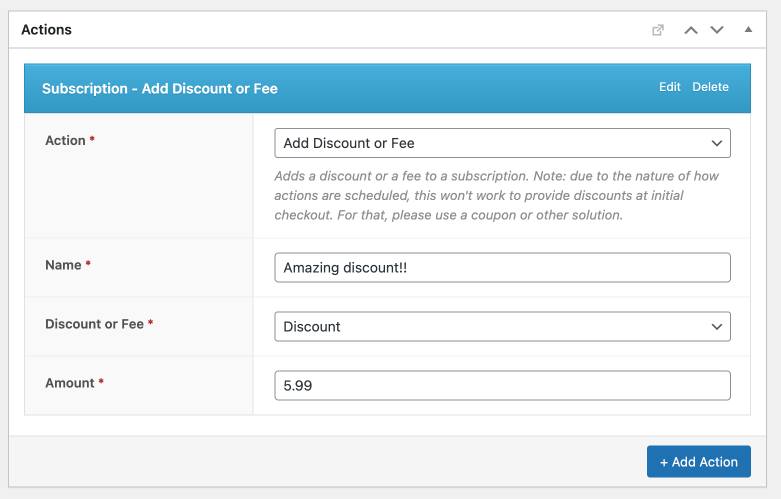
    The Subscription Action Add Discount or Fee plugin allows store owners to automatically apply non-taxable discounts or fees to subscriptions after the subscription has already been created. These are added as a “fee” line item on the subscription (not as a discount on individual products).

    AutomateWoo – Order Rule Recent Failed Orders

    The Order Rule Recent Failed Orders plugin can help you monitor your store for failed orders. It adds three “Shop” rules which check for failed orders over the last 24 hours, 6 hours and 1 hour. You could use this rule to, for example, email you if you have more than X failed orders in 24 hours, indicating a possible problem with your payment processor.

    AutomateWoo – Subscription Action Swap Product

    The Subscription Action Swap Product plugin provides a method for swapping products within a customer’s existing subscription, without triggering any recalculations. It’s a very simple action that essentially just swaps the product IDs of the line items, and doesn’t change any prices, taxes, etc.

    AutomateWoo – Subscription Action Delay Renewal

    The Subscription Action Delay Renewal plugin provides an action which extends out the Next Payment Date (the next renewal) of an existing subscription. For example, you could use this to delay the first renewal by 7 days (a real use case).

    AutomateWoo – Order Action Add Free Product

    The Order Action Add Free Product plugin automates the process of adding a complimentary product to a customer’s order. Due to the way that actions are scheduled with AutomateWoo, this is designed for downstream use – particularly after the order has been completed. This was used by a merchant who wanted to add a specific free SKU to packages in such a way that was invisible to the customer when checking out, but before it made it to the shipping provider.

  • Add autoupdates to your WordPress plugin that’s hosted on GitHub using update_plugins_{$hostname}

    Add autoupdates to your WordPress plugin that’s hosted on GitHub using update_plugins_{$hostname}

    Synopsis

    • You have a plugin that you host on GitHub (must be public, not private)
    • You want new releases for that plugin to show up in wp-admin
    • You want to be able to “enable auto-updates” for that plugin in wp-admin

    How

    Since WordPress 5.8, we’ve been able to set the Update URI in the plugin header. Setting that plugin URI allows us to add a filter to modify the update process based on the Update URI.

    The Code

    First, you need to add the Update URI to your plugin header, i.e.:

    <?php
    /*
    Plugin Name: Your Custom Plugin
    Update URI: https://github.com/your-org/your-custom-plugin/
    */

    Then, add a filter like this:

    <?php
    add_filter( 'update_plugins_github.com', 'self_update', 10, 4 );
    
    /**
     * Check for updates to this plugin
     *
     * @param array  $update   Array of update data.
     * @param array  $plugin_data Array of plugin data.
     * @param string $plugin_file Path to plugin file.
     * @param string $locales    Locale code.
     *
     * @return array|bool Array of update data or false if no update available.
     */
    function self_update( $update, array $plugin_data, string $plugin_file, $locales ) {
    
    	// only check this plugin
    	if ( 'your-custom-plugin/your-custom-plugin.php' !== $plugin_file ) {
    		return $update;
    	}
    
    	// already completed update check elsewhere
    	if ( ! empty( $update ) ) {
    		return $update;
    	}
    
    	// let's go get the latest version number from GitHub
    	$response = wp_remote_get(
    		'https://api.github.com/repos/your-org/your-custom-plugin/releases/latest',
    		array(
    			'user-agent' => 'YOUR_GITHUB_USERNAME',
    		)
    	);
    
    	if ( is_wp_error( $response ) ) {
    		return;
    	} else {
    		$output = json_decode( wp_remote_retrieve_body( $response ), true );
    	}
    
    	$new_version_number  = $output['tag_name'];
    	$is_update_available = version_compare( $plugin_data['Version'], $new_version_number, '<' );
    
    	if ( ! $is_update_available ) {
    		return false;
    	}
    
    	$new_url     = $output['html_url'];
    	$new_package = $output['assets'][0]['browser_download_url'];
    
    	error_log('$plugin_data: ' . print_r( $plugin_data, true ));
    	error_log('$new_version_number: ' . $new_version_number );
    	error_log('$new_url: ' . $new_url );
    	error_log('$new_package: ' . $new_package );
    
    	return array(
    		'slug'    => $plugin_data['TextDomain'],
    		'version' => $new_version_number,
    		'url'     => $new_url,
    		'package' => $new_package,
    	);
    }

    The Result

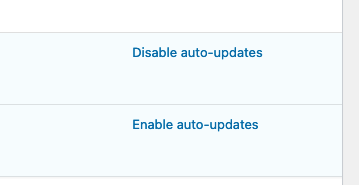
    When WordPress checks if there are plugin updates available, the update now shows as being available. If you have auto-updates enabled, then the plugin will autoupdate.

  • How To Pause WooCommerce Subscription Renewals

    How To Pause WooCommerce Subscription Renewals

    Synopsis

    I wrote another free mini-plugin. This one allows a WooCommerce store to pause all WooCommerce Subscription renewals.

    Use Cases

    There are times when a WooCommerce store needs to temporarily pause all renewals, such as:

    • They need to catch up on a backlog of shipments before allowing more renewals to run
    • Supply chain has slowed down manufacturing, and new inventory won’t be in stock for another week
    • Fulfillment needs to be paused during a holiday

    In these scenarios, it would be fairly safe to pause renewals temporarily, and unpause them after a certain period of time.

    Details

    • This stops actions with the `woocommerce_scheduled_subscription_payment` and `woocommerce_scheduled_subscription_payment_retry` hooks from being claimed by action scheduler, effectively pausing them.
    • As soon as they are unpaused, any past-due actions will start to run.
    • This does not pause any other actions.
    • This doesn’t work for the old PayPal Standard subscriptions or the WC Pay subscriptions that aren’t associated with the WooCommerce Subscriptions plugin; it only works with subscriptions managed by WooCommerce Subscriptions.

    Download

    https://github.com/NickGreen/pause-renewal-actions

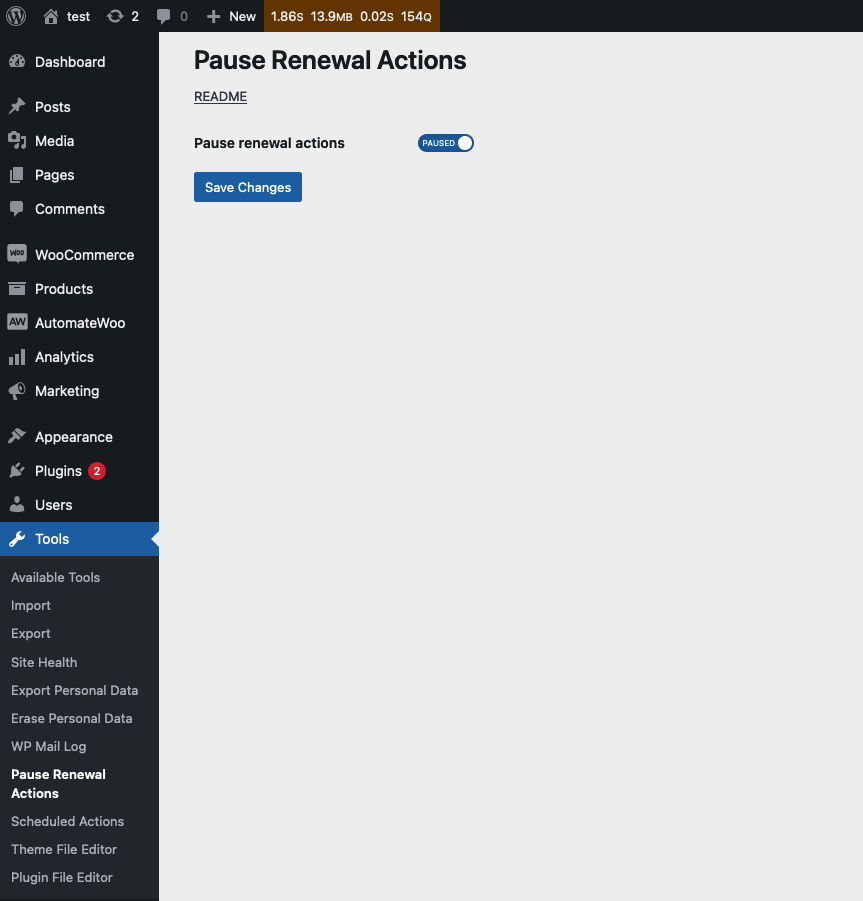
    Click the green ‘code’ button, and the ‘Download Zip’ link. You can then upload that zip file to your WordPress site. Go to Tools > Pause Renewal Actions and toggle the option there to pause renewals.

    Disclaimer

    This plugin is provided with no support or guarantees. Testing/development is done for this, but I’d still recommend doing a quick test on a development site before loading on production, to be sure there aren’t any issues with a specific site. If you have an issue or suggestion, please submit an issue or PR in the repository on GitHub. Thanks for being part of the WordPress community!

  • AutomateWoo Order Action Add Free Product

    AutomateWoo Order Action Add Free Product

    I wrote a mini-plugin. It extends the functionality of AutomateWoo with a custom action which allows you to add a free product to an order as a line item.

    Intended use

    This action is intended for downstream use, such as adding a product to the order after it is created, but before it gets shipped, and the customer doesn’t need to be aware of it while checking out.

    This is because the product doesn’t get added to the order until after it has been created, so therefore doesn’t show on the checkout page or the order confirmation page. This means you can’t use it as a replacement for Force Sells, for example, which adds products to the cart before checkout.

    I repeat: AutomateWoo runs asynchronously, so you will want to test that the product is added to your orders in a timely enough manner for your purposes.

    Also, note that any product added will be added as a free product (price of $0), since it doesn’t make sense to add a cost to the order after it’s been paid for.

    Repo

    https://github.com/NickGreen/automatewoo-order-add-product

  • Sitting on the Job (Workout for Mom and Dad #3)

    Sitting on the Job (Workout for Mom and Dad #3)

    Time

    About 30 minutes

    Equipment needed

    • Jugs and/or 5# weights
    • Chair with arms for L-sit (optional)
    • A timer or clock

    Warm up!


    10 slow hinges

    10 slow lunges (assisted if needed)

    4 x 20 second door jamb stretch

    10 air squats (or sit-to-stand if needed)

    30 jumping jacks


    Click to view warm up demonstration videos
    https://www.youtube.com/watch?v=WKkQLZL1As8
    https://www.youtube.com/watch?v=rT7rgXQtDcI

    Workout!

    This is a Partner Workout. That means you will:

    • Complete all of the movements between the two of you, splitting the reps evenly.
    • While one partner completes their reps, the other partner holds an L-sit position (from ground or chair with arms).
    • Don’t start your movements until your partner is in position.

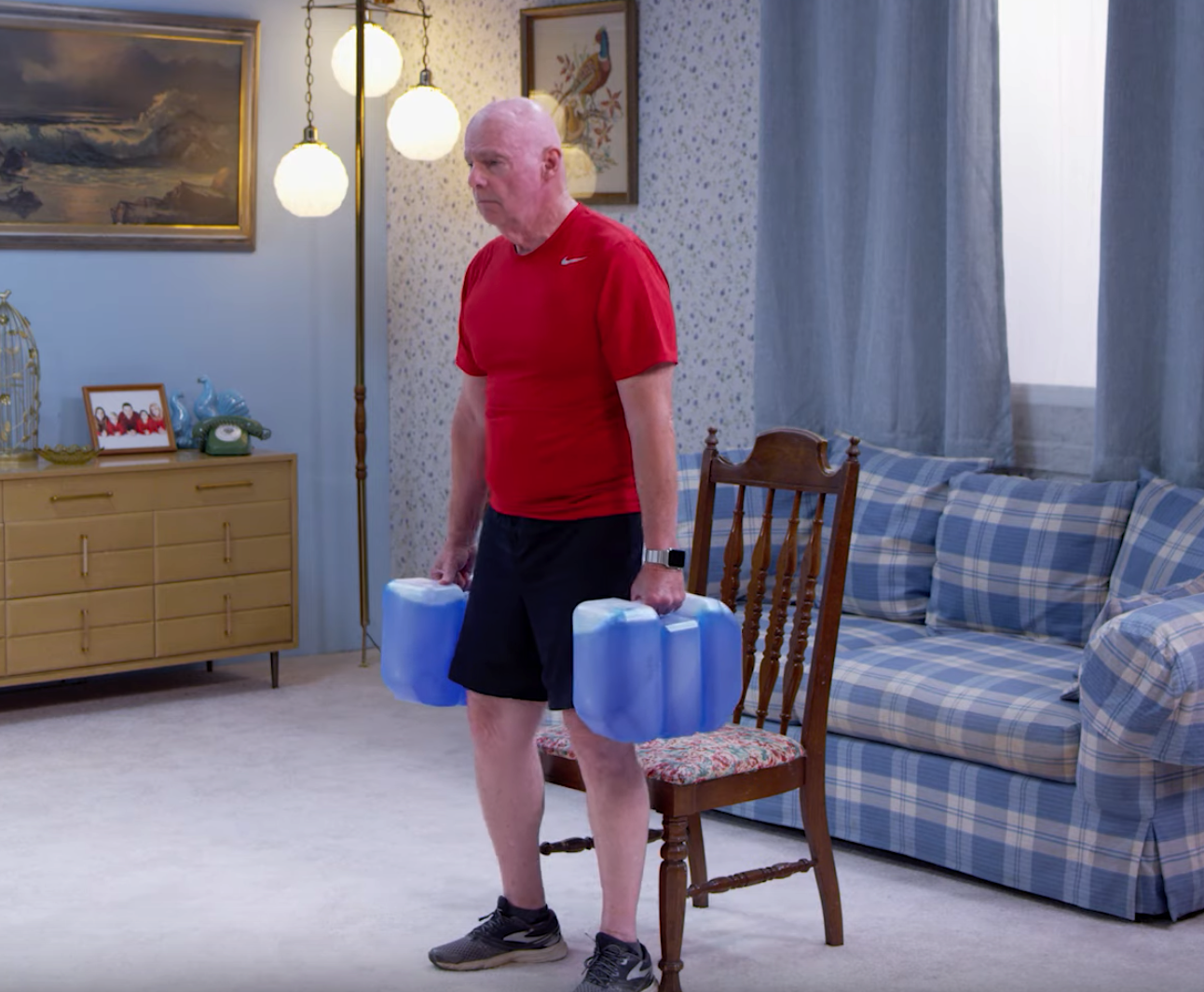
    100 shoulder press negatives (use jugs or 5# weights)

    100 floor presses (use jugs or 5# weights)

    100 sprawls


    Score is the time your team took to finish all of the movements above.

    Record your score in the comments below.

    Click to view workout demonstration videos
  • Partners for Life (workout #2 for Mom and Dad)

    Partners for Life (workout #2 for Mom and Dad)

    Time

    About 30 minutes

    Equipment needed

    • 1 full one-gallon jug to share
    • Couch
    • A timer or clock

    Warm up!


    10 slow hinges

    10 slow lunges (assisted if needed)

    4 x 20 second door jamb stretch

    10 air squats (or sit-to-stand if needed)

    30 jumping jacks


    Click to view warm up demonstration videos
    https://www.youtube.com/watch?v=WKkQLZL1As8
    https://www.youtube.com/watch?v=rT7rgXQtDcI

    Workout!

    This is a Partner Workout. That means you will complete all of the movements between the two of you, splitting the reps evenly. While one partner completes their reps, the other partner rests and cheers the other one on.


    200 couch push-ups

    100 leg raises over the jug

    50 alternating single-leg deadlifts with jug


    Score is the time your team took to finish all of the movements above.

    Record your score in the comments below.

    Click to view workout demonstration videos
  • “Great Jugs” (Workout for Mom & Dad)

    “Great Jugs” (Workout for Mom & Dad)

    Time

    About 25 minutes

    Equipment needed

    • 2 full one-gallon jugs per person
    • 2 chairs per person
    • A timer or clock
    • A method to keep track of how many rounds you do (putting change in a cup, or marks on a chalkboard)

    Warm up!


    10 slow hinges

    10 samson lunges

    4 x 20 second door jamb stretch

    10 couch push-ups

    30 jumping jacks


    Click to view warm up demonstration videos
    https://www.youtube.com/watch?v=WKkQLZL1As8
    https://www.youtube.com/watch?v=rT7rgXQtDcI

    Workout!

    15 minute AMRAP (as many rounds as possible) of these movements:


    20 weighted step-ups

    10 weighted sit-to-stands

    5 chair dips


    The above 3 sets of movements = 1 round. Your score is how many rounds you can do in 15 minutes.

    Record your score in the comments below.

    Click to view workout demonstration videos
  • Bloodroot Kids – “Cool Down”

    Bloodroot Kids – “Cool Down”

    A tune my brother and I put together recently:

  • Fight Hedonic Adaptation

    Fight Hedonic Adaptation

    Happiness seekers tend to focus on changing their life circumstances, such as buying a new house, switching jobs, or getting married. However, people have been found to adapt to both positive and negative life changes, such as marriage, job promotion, disability, and widowhood. This process—known as hedonic adaptation—can serve as a formidable barrier to achieving lasting happiness.

    Stability of Happiness, 2014

  • Add Product Category to email subject WooCommerce

    Add Product Category to email subject WooCommerce

    This snippet will add a new {product_category} placeholder to the email subject for the New Order email in WooCommerce.

    So, for example, when I go to WooCommerce > settings > email > New Order > “manage”, I can have a subject line like this:
    [{site_title}]: New order - [{product_category}] #{order_number}

  • The Natural

    The Natural

    Is there something that you’ve always felt you were naturally good at? Think about that “talent” and try to remember all of the practice that you actually did to get good at that thing without realizing it.

    Naturally fit? Maybe you grew up in an environment where you loved running around and climbing trees a lot – you were practicing without realizing it.

    Naturally good at cooking? Maybe you’ve spent years putting together meals from your cabinets and learning what goes with what – again, practicing.

    “I’m not naturally good at that” is really just a wrongheaded way of describing something that you haven’t practiced enough. If you find a fun way of practicing something without realizing it, then you will eventually become a “natural” at it.

  • Restrict plugin (or all) autoupdates to business hours – WordPress

    Restrict plugin (or all) autoupdates to business hours – WordPress

    We love the plugin autoupdate functionality in WordPress, but we really don’t want them to update on a Saturday night, potentially bringing a site down and messing up our weekend.

    Update
    I’ve made this into a downloadable plugin here: https://github.com/a8cteam51/plugin-autoupdate-filter/

    When do plugin autoupdates happen?

    Every time someone hits admin: add_action( 'admin_init', '_maybe_update_plugins' );

    This function checks if plugin autoupdates have happened in the last 12 hours: https://core.trac.wordpress.org/browser/tags/5.5.3/src/wp-includes/update.php#L804

    So it’s not a specific time, but rather it’s checking a transient to see when it last happened. It’s also not reliant on WP_CRON.

    This is good news, because we don’t have to worry about hitting a 12 hour window – it will just check if it’s happened in the last 12 hours and then run if it’s in a predefined window we set.

    How do we set time windows for updates?

    Method 1: All Autoupdates

    Method 2: Plugins Only

    Note that this second method respects the autoupdate setting within business hours, so you can still fully disable autoupdates for specific plugins individually.

  • Filter classic WordPress gallery shortcode attributes

    Filter classic WordPress gallery shortcode attributes

    Use Case

    We ran an automated import from a Tumblr site to a new WordPress site, and all galleries were imported as gallery shortcodes in classic editor blocks, and they all were set to the default 3 columns and showing thumbnail sizes.

    We wanted to change the gallery settings on those imported galleries to a single column, and full size.

    Filterable Attributes

    The gallery shortcode has a bunch of attributes that you can apply to it: https://developer.wordpress.org/reference/functions/gallery_shortcode/#parameters

    These are filterable using the shortcode_atts_gallery filter.

    Code Example

  • Atreus62 – Office Edition

    Atreus62 – Office Edition

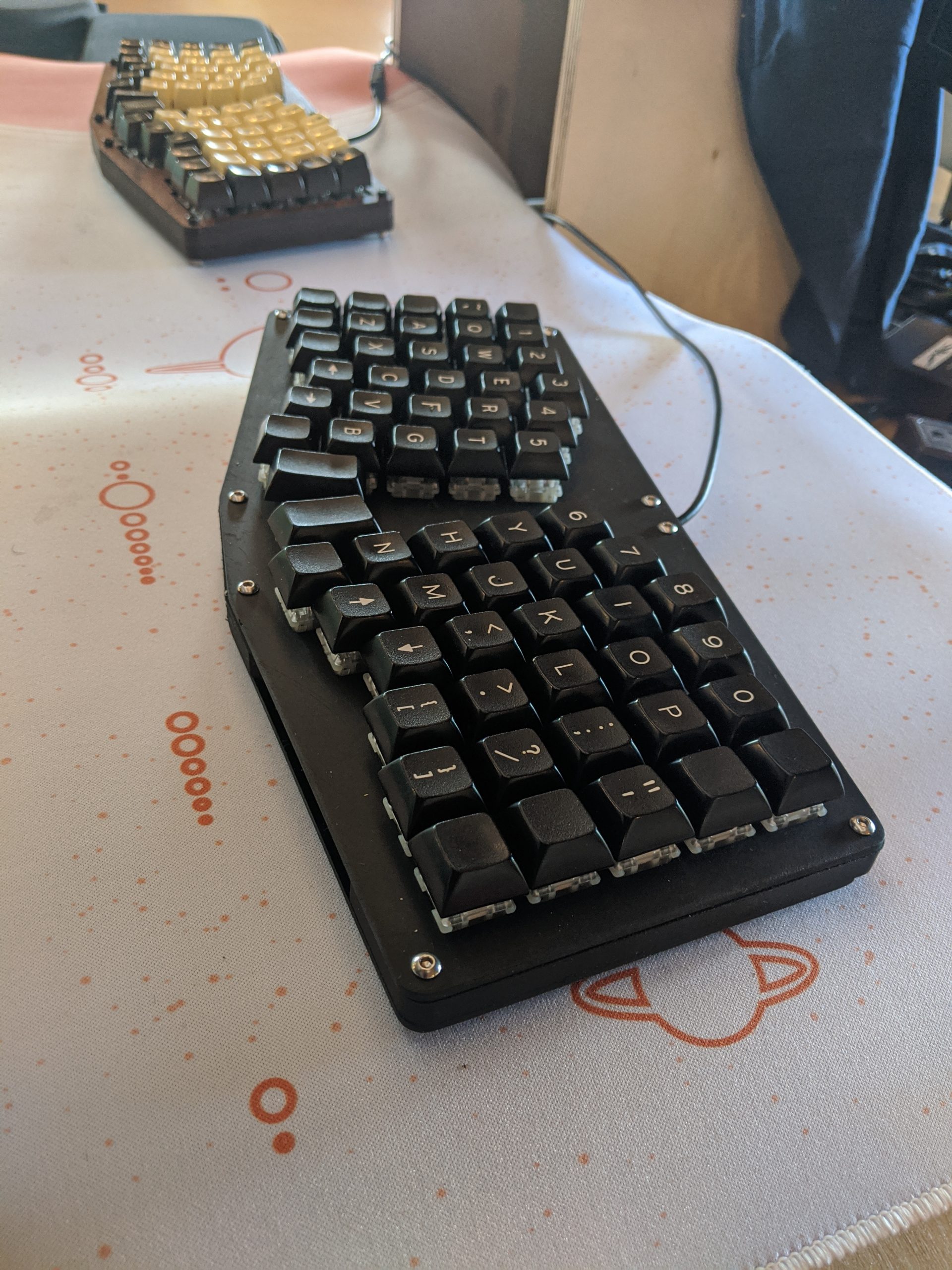
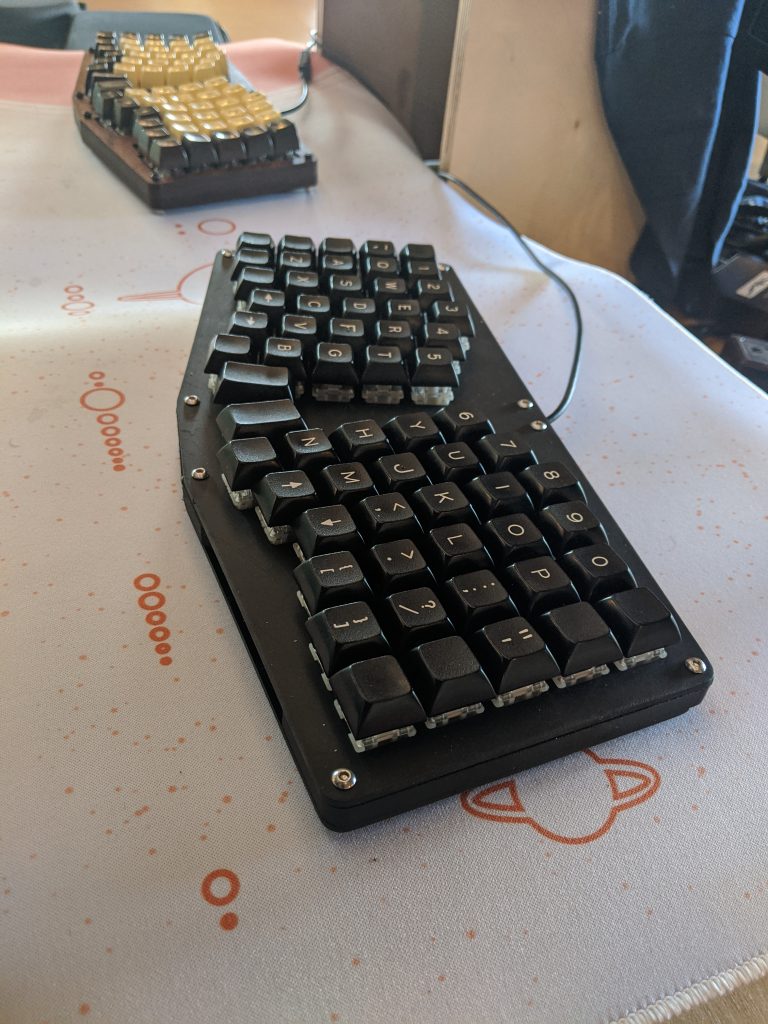
    I recently refurbed an old Atreus62 that I got used, and I’m loving it as my new office board.

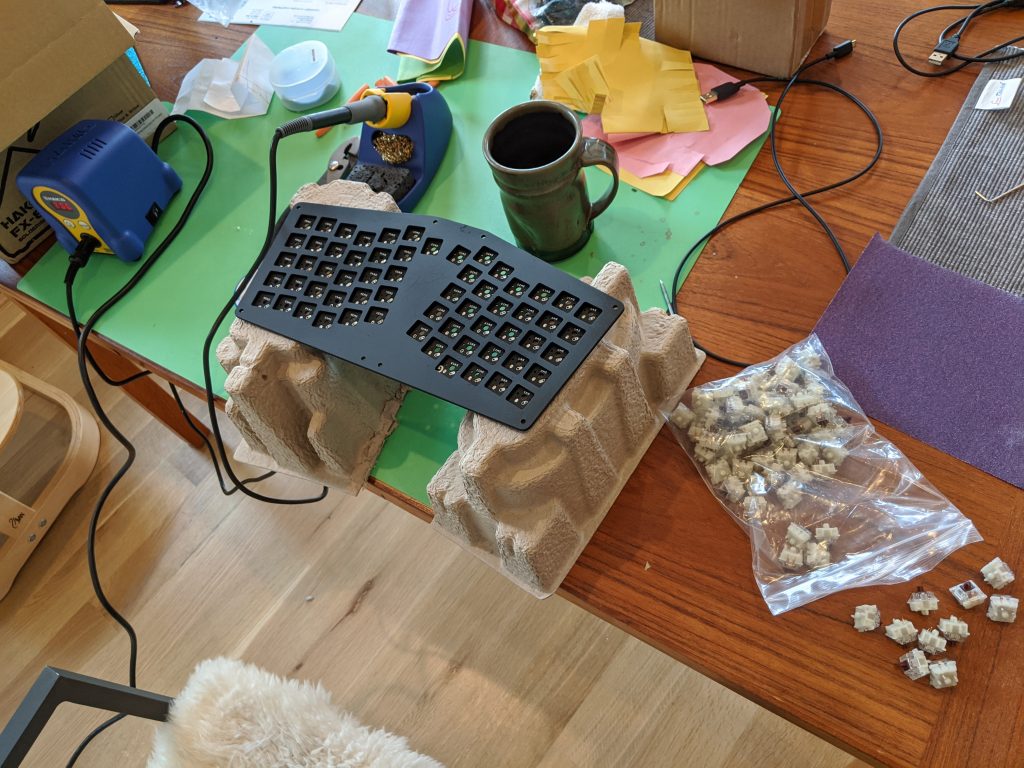
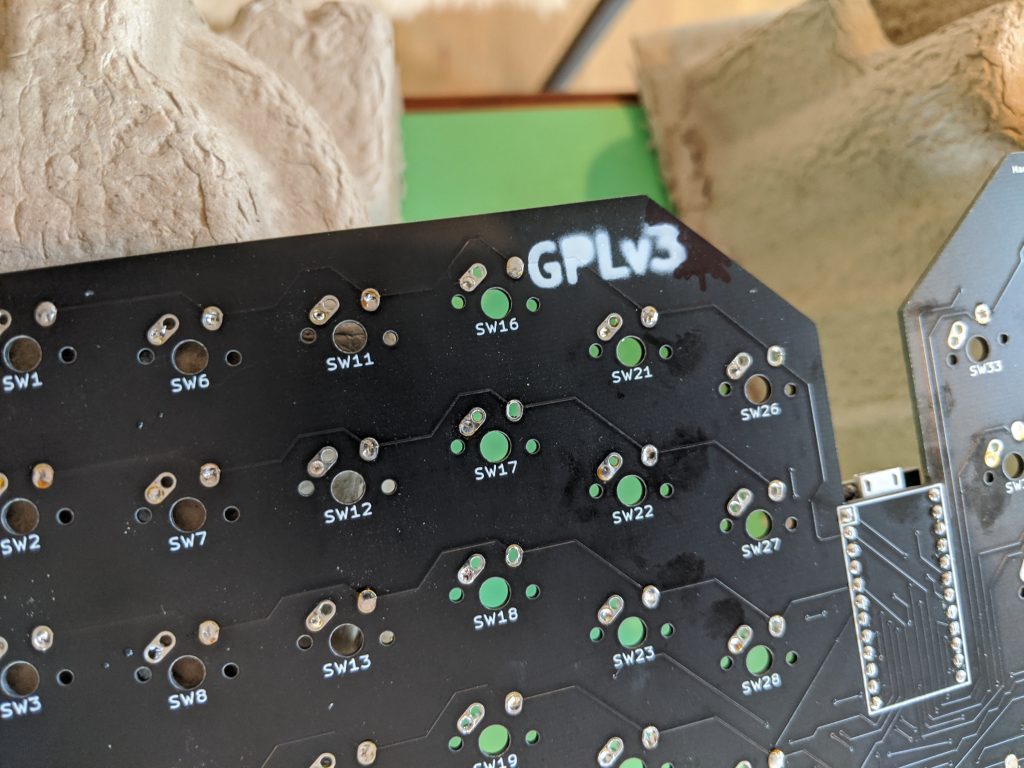
    It was originally built with Cherry MX Greens, which were waaaay too heavy and clicky for me, so I desoldered them and ordered and installed some Gateron Silent Browns, which I love. And not only that, but my coworking officemates also love them, because they are actually really silent. They took over four months to get here, due to COVID-related shipping backlog from China, but it was worth it.

    Behold, my home board and my office board:

  • Touchscreen interface for SONOS speaker (for my 3-year-old)

    Touchscreen interface for SONOS speaker (for my 3-year-old)

    My 3-year-old loves her music, but our SONOS speakers require a device (phone, computer, etc) to control them. She always has to rely on us to start her music for her.

    Last week, I had an unprecedented day off; it was glorious time to let my mind create whatever it wanted. And apparently, messing around with an API was what it wanted.

    Here’s the final product:

    Features

    • Touching a thumbnail will play that album or playlist from Spotify on the SONOS speaker in my daughter’s room.
    • We can add a new playable item from our phones by saving something as a favorite in SONOS, and naming that playlist with the first part being my daughter’s name, e.g. “[Name] – Frozen 2”

    Nitty Gritty

    Interface

    The touchscreen is an old Lenovo Yoga 13 I pulled out of the basement. It is pretty beat up and slow, but I gave it new life by loading Ubuntu onto it.

    However, since I’m just loading this on a web page, you could do this on anything that is able to run node.js.

    SONOS http API

    The first step is getting something set up to interface with the SONOS API. If you’re not familiar with SONOS, the speakers in your house set up their own little wifi network, with one of the speakers acting as the master, that you can interface with.

    In this case, I chose to use this API, since I knew I could whip up a webpage quickly to leverage it: https://github.com/jishi/node-sonos-http-api

    This API allows you to control individual SONOS speakers on your network through simple http calls. Nice!

    You first have to install node on your computer, then start the API running. It has to be running continuously for the interface to work.

    Webpage

    This is super hacky – don’t judge 😉 (I did it in one sitting on the couch)

  • Export Gifted Subscriptions (WooCommerce)

    Export Gifted Subscriptions (WooCommerce)

    Use Case

    You are trying to export or track which subscriptions have been gifted.

    Plugins

    Snippet

    Output

    This will add a new ‘Recipient’ column to your CSV Export, which will include the user ID of the recipient. After importing into Google Sheets or similar, you can sort by that colum to determine the subscriptions which have a recipient, i.e. which ones have been gifted.

  • Minimum Subscription Period WooCommerce

    Minimum Subscription Period WooCommerce

    There’s no default way to set a minimum subscription period with WooCommerce Subscriptions, but there are a couple of potential solutions to this:

    Sign-up fee and free trial

    Let’s say you want a customer to have to pay a minimum amount, and then go monthly after that, you could set a sign-up fee and free trial on the subscription to ensure that the customer pays a minimum amount before being able to cancel.

    There’s a decent blog post about exactly how to do that here: https://wpbeaches.com/set-a-minimum-subscription-period-in-woocommerce-subscriptions/

    Hide cancel button until minimum number of payments

    Another way to do this is to simply take away the customers’ ability to cancel the subscription until a minimum number of payments have processed. Thanks to jrick1229 for this snippet:

    Note: you may also want to hide the suspend action button.

  • Log PayPal IPN Payload in WooCommerce

    Log PayPal IPN Payload in WooCommerce

    PayPal Standard communicates with your WooCommerce store using IPNs ( and PDT, if you have it set up, but it’s not as common). For the most part, IPNs are still the standard method of sending information back to a WooCommerce store, such as successful charges, subscription renewals, etc.

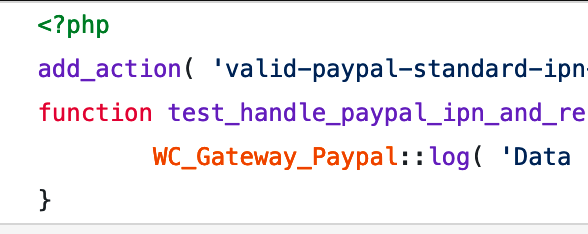
    If you want to capture and log the payload of a PayPal IPN on your WooCommerce store, you can hook into valid-paypal-standard-ipn-request like this:

  • Learning to Fly (bedtime story)

    Learning to Fly (bedtime story)

    One spring day, a girl and her best friend were lying in the grass, looking up at the clouds in the sky. “I wish I were a fairy,” said the girl.

    ”Maybe you are a fairy but you just don’t know it yet,” said her best friend.

    ”There’s only one way to find out,” said the girl.

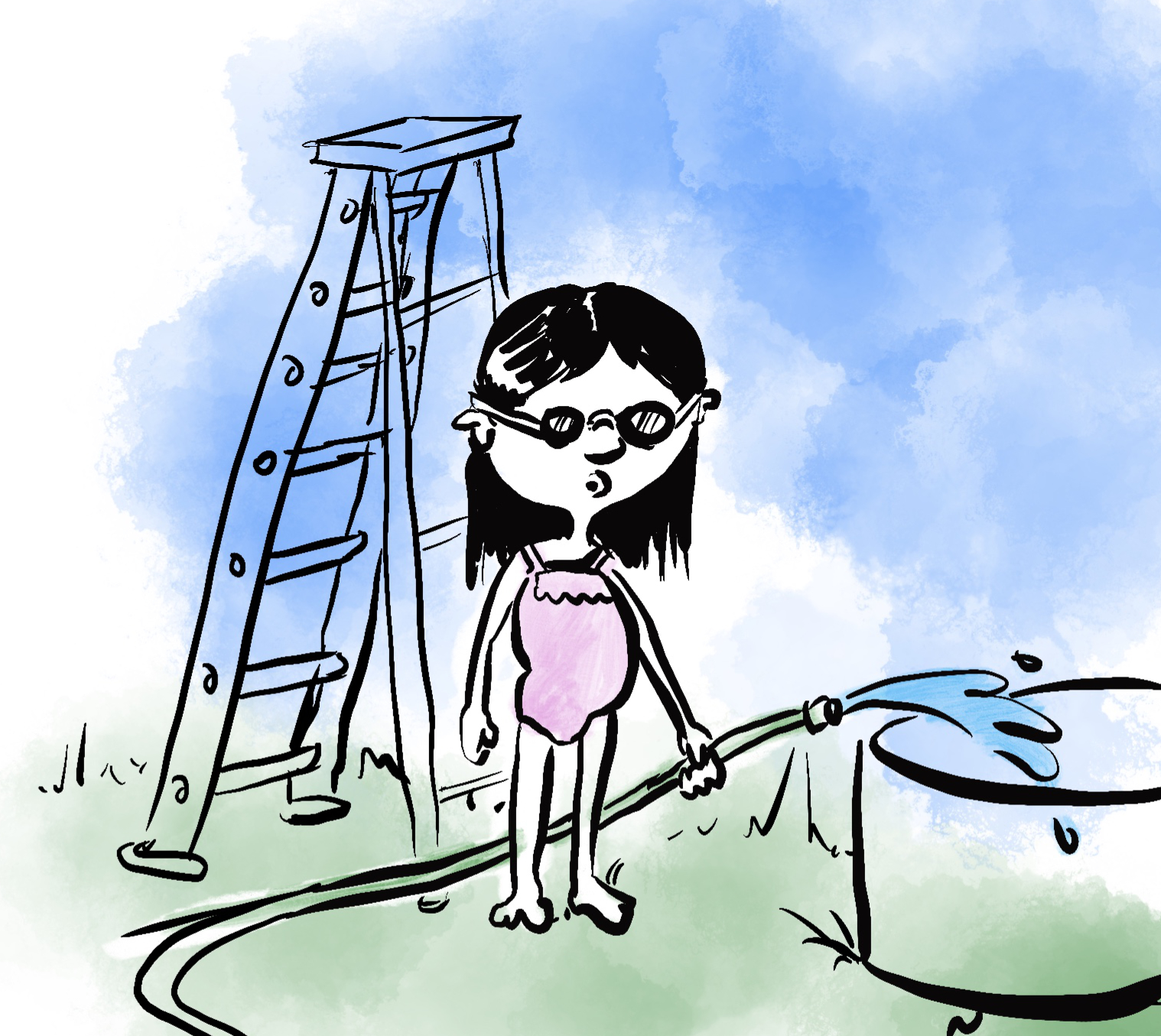
    So she got a tall ladder out of the garage and put it in the middle of the yard. “If I jump off the top and flap my arms really hard, I’ll probably fly away, just like a fairy!”

    “Wait a minute,” said her friend, “what if you fly so fast, you get bugs in your eyes?”

    So the girl climbed down, got her goggles, put them on, and climbed back up to the top of the tall ladder, ready to jump.

    ”Wait a minute,” said her friend, “what if your clothes catch on the trees when you fly by?”

    So the girl climbed down, changed into her swimsuit (it was the tightest thing she had), and climbed back up to the top of the tall ladder, ready to jump.

    ”Wait one more minute,” said her friend, “how will you ever know that you’re flying, if you can’t see yourself?”

    So the girl climbed down one last time, dragged the pool over to bottom of the ladder, filled it with a hose, so she could see her reflection in the water, and climbed back up to the top of the tall ladder.

    She took a deep breath, counted to three, jumped off the ladder, and flapped her arms as hard as she could.

    And for a moment, she thought she could fly, just like a fairy.

    Then, she realized that she’s definitely not a fairy, and she fell down down down and splash, landed in the pool.

    But since her arms were still flapping, she started to swim. She did three laps around the pool, then did a backflip and twirled around twice, grinning.

    ”Oh well, I guess you’re not a fairy,” said her best friend.

    ”That’s OK,” said the girl, “because I’m pretty sure I’m a mermaid!”

  • Switch between options of same subscription WooCommerce

    Switch between options of same subscription WooCommerce

    Customer use case

    I have a client that is wanting to set up a subscription where the customer would select a product and it would allow them to select one or more weekdays. The cost of the subscription would be the total of the weekdays selected, and it would be a weekly-recurring order. What I’m wondering is if the Product Addons plugin would work with the Subscriptions plugin and allow the customer to go in and update their subscription to change the weekdays? So, they originally select Mon/Wed/Fri and then later on, if they wanted to could change that to Mon/Tue/Wed/Thu/Fri and have the subscription be updated, rather than cancelling and starting a new subscription.

    Required plugins

    Setup

    1. Enable switching between grouped products
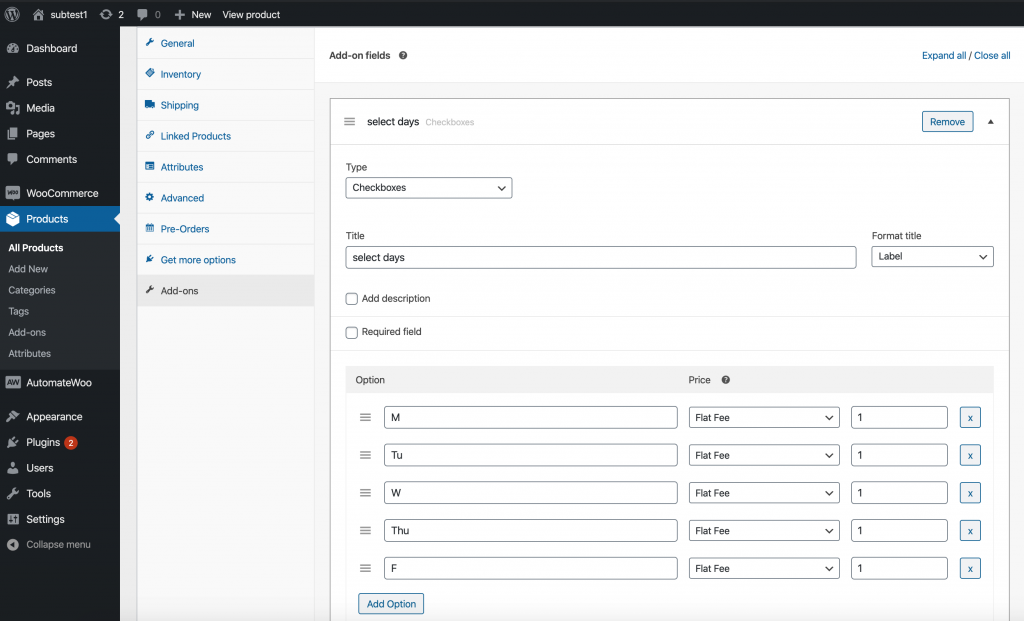
    2. Create a simple subscription product with checkbox add-ons to represent the days of the week:

    3. Create a grouped product, and link the simple subscription product and any other subscription product (it doesn’t matter which one):

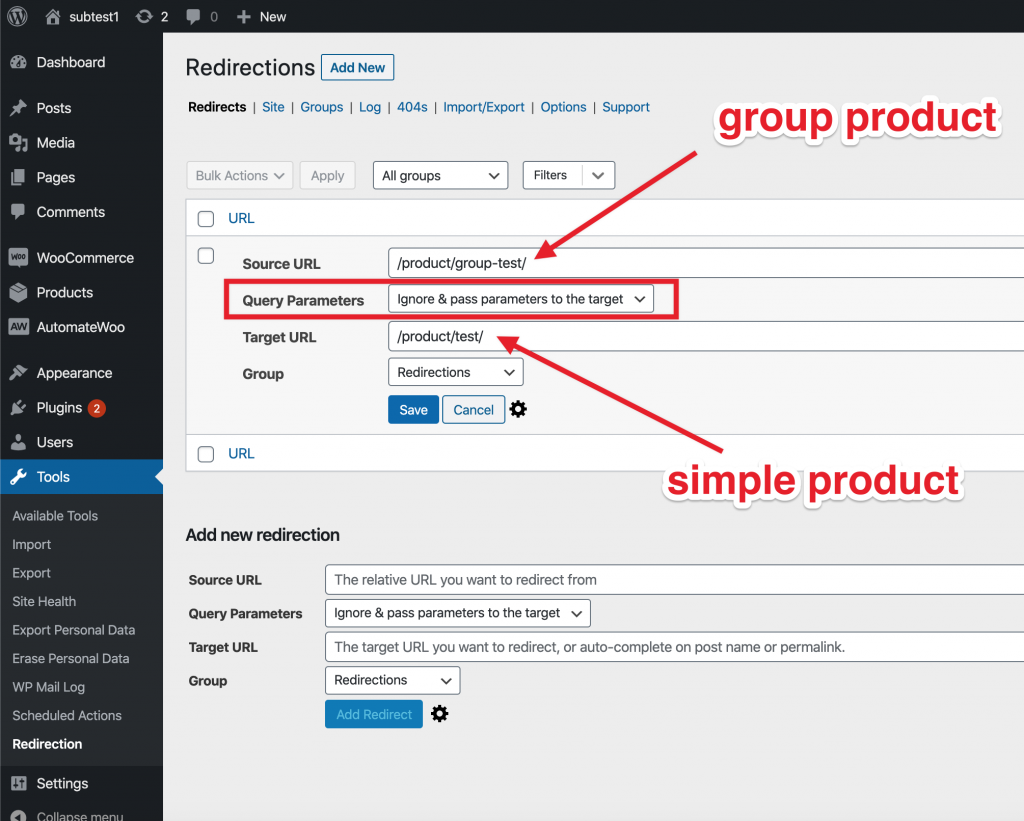
    4. Set up a redirect from the group product to the simple product. Make sure you select “pass parameters to the target”:

    User experience

    1. Customer purchases the simple product with various weekdays selected.
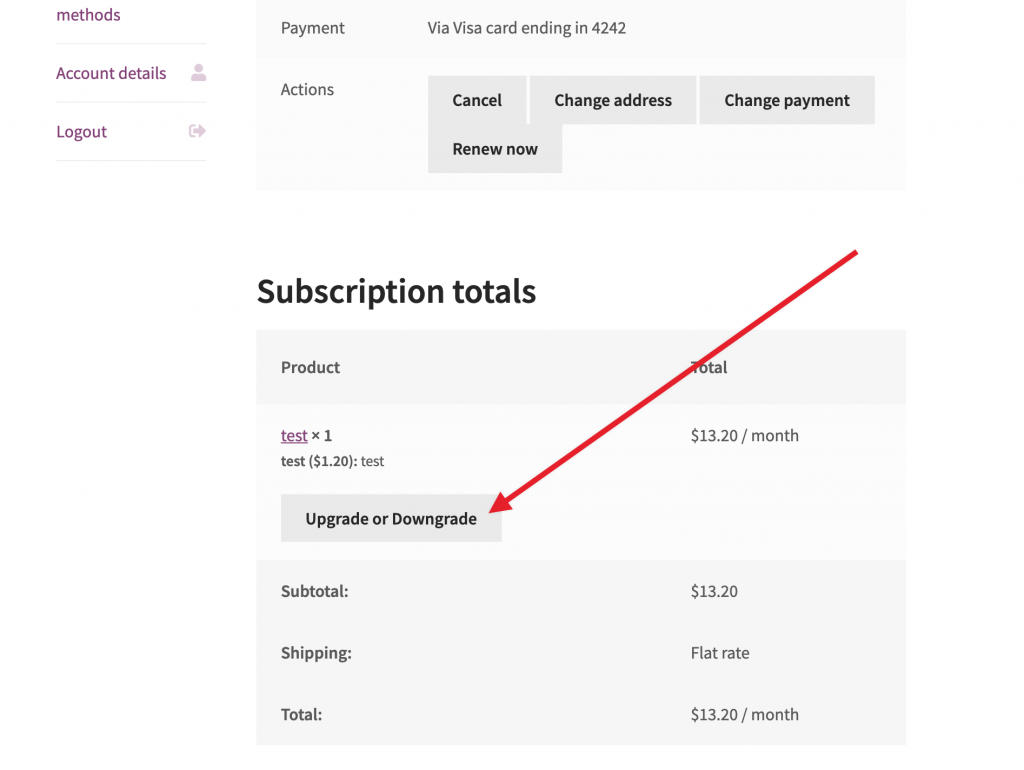
    2. To change their subscription, customer clicks the Upgrade or Downgrade button from their My Account page (that text is editable):
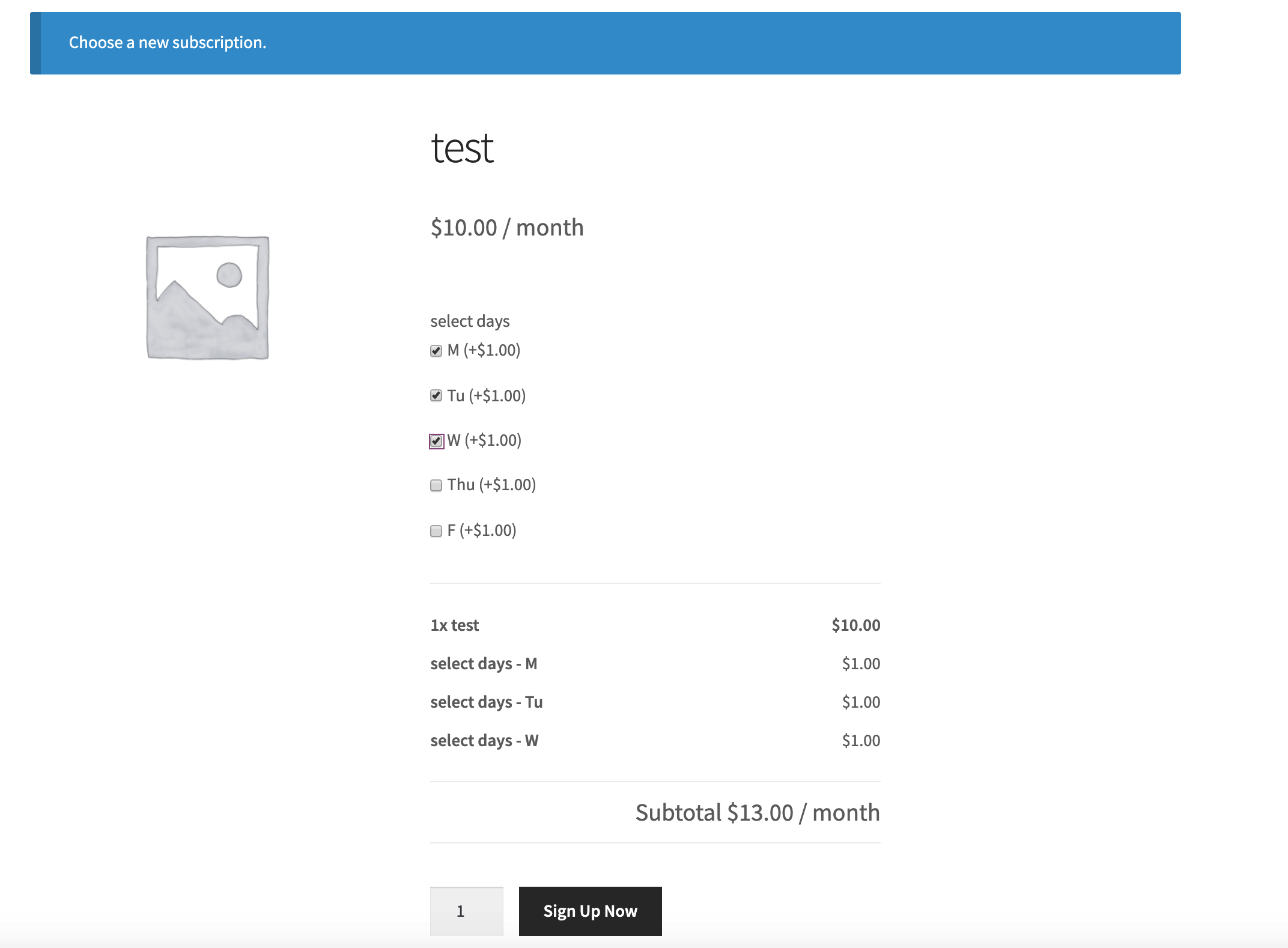
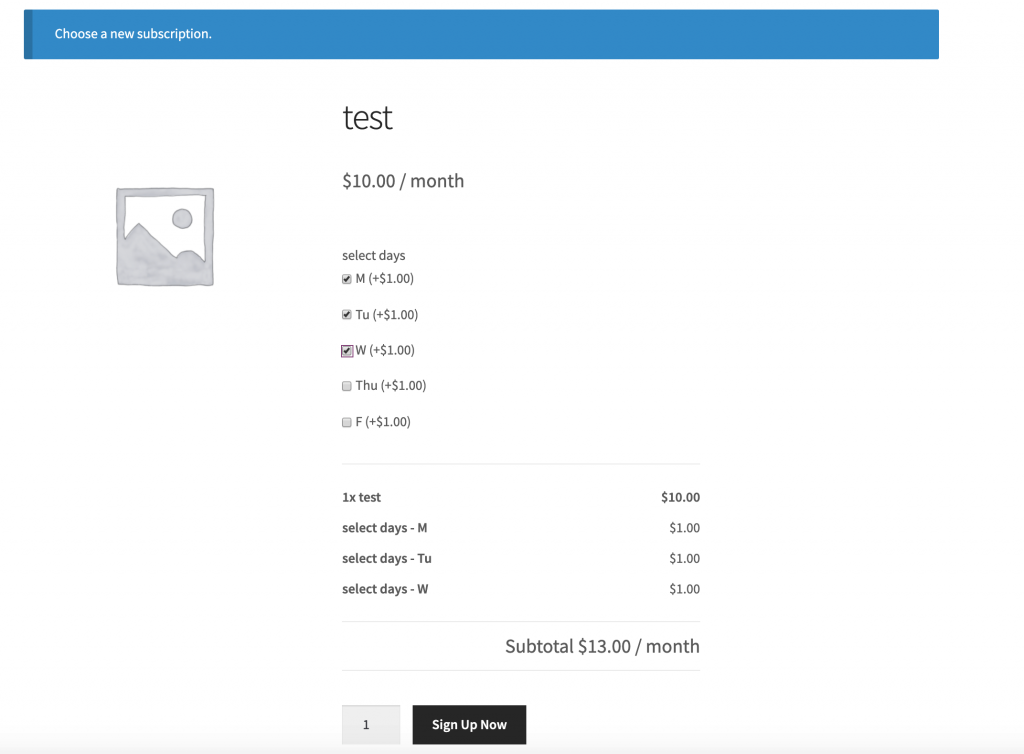
    3. Customer is taken to the product page, where they can select new options and check out:

  • Reboot Takeaways

    Reboot Takeaways

    This month, I was lucky enough to spend a week in Charlotte taking the 3-day intensive leadership training course that was lead by Reboot. I’m sure there are many recaps and reviews that try to take 3 days worth of jam-packed content and try to distill it into a single post. Instead, I will drop in some takeaways and bite-sized quotes that will give you a flavor of what it was like from my perspective.

    TL;DR Reboot was valuable. Here are some tidbits and thoughts of my own.


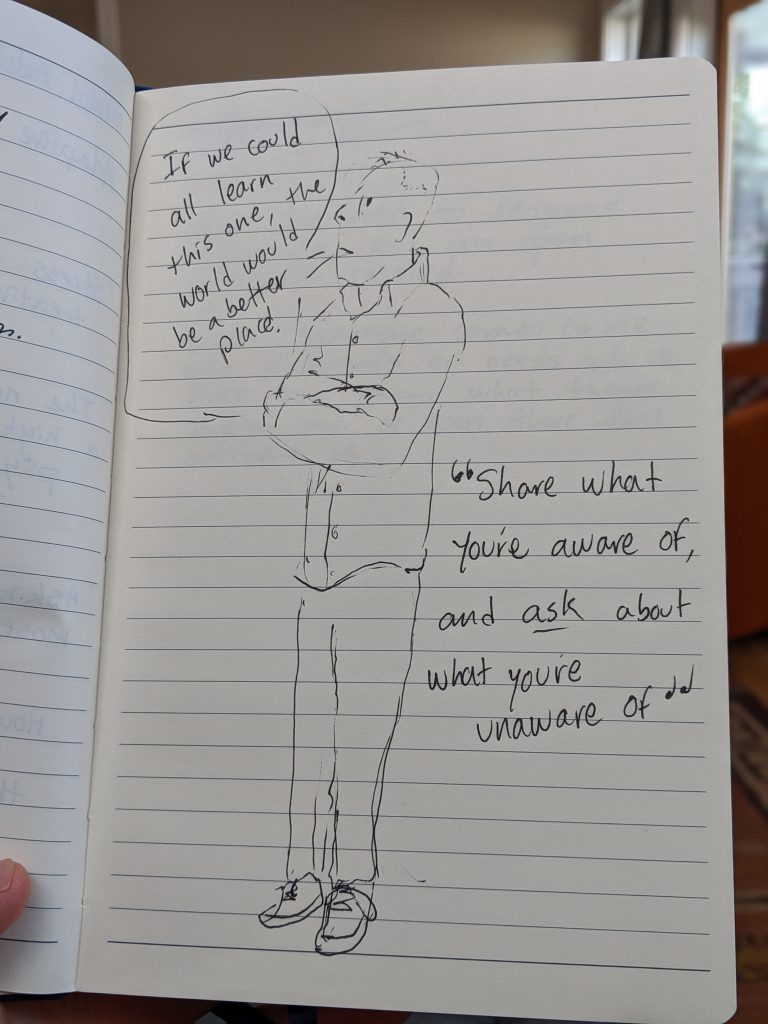
    Share what you’re aware of, and ask about what you’re unaware of.

    We take actions based on beliefs.

    To generate action, first generate belief in the motivation behind that action.


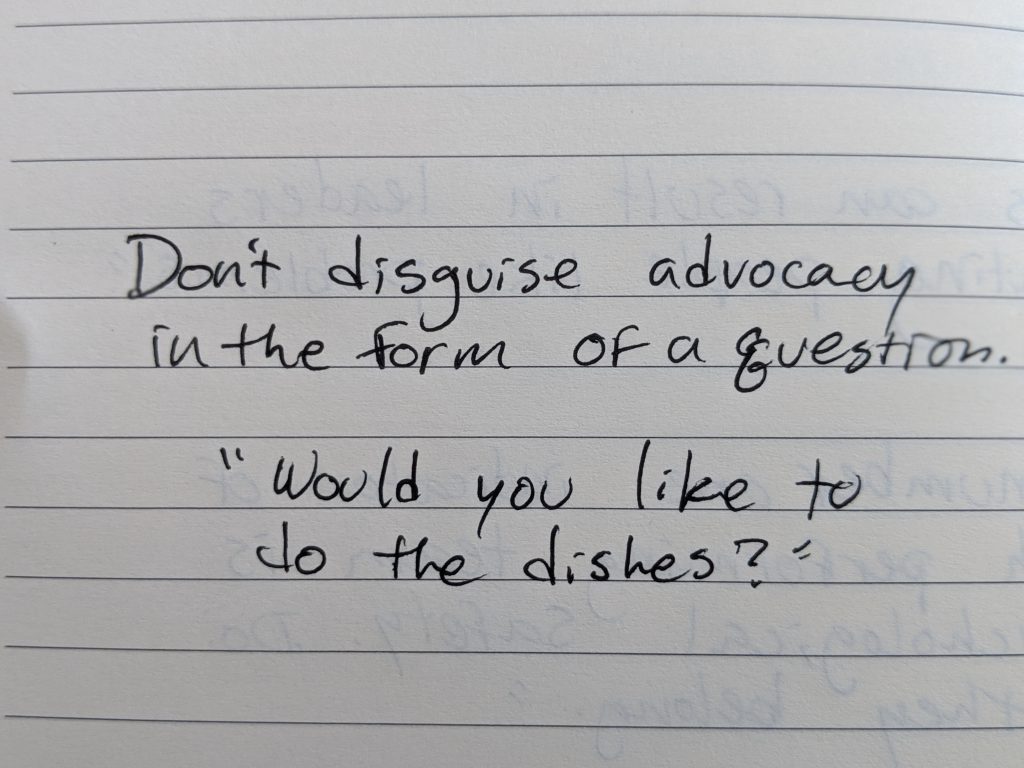
    Don’t disguise advocacy in the form of a question.

    Stress can result in leaders treating people like problems.

    When someone brings something to you, don’t assume that it’s a problem that you need to take action with. If you’re tempted to take action or offer a solution, ask first if that’s what they need.


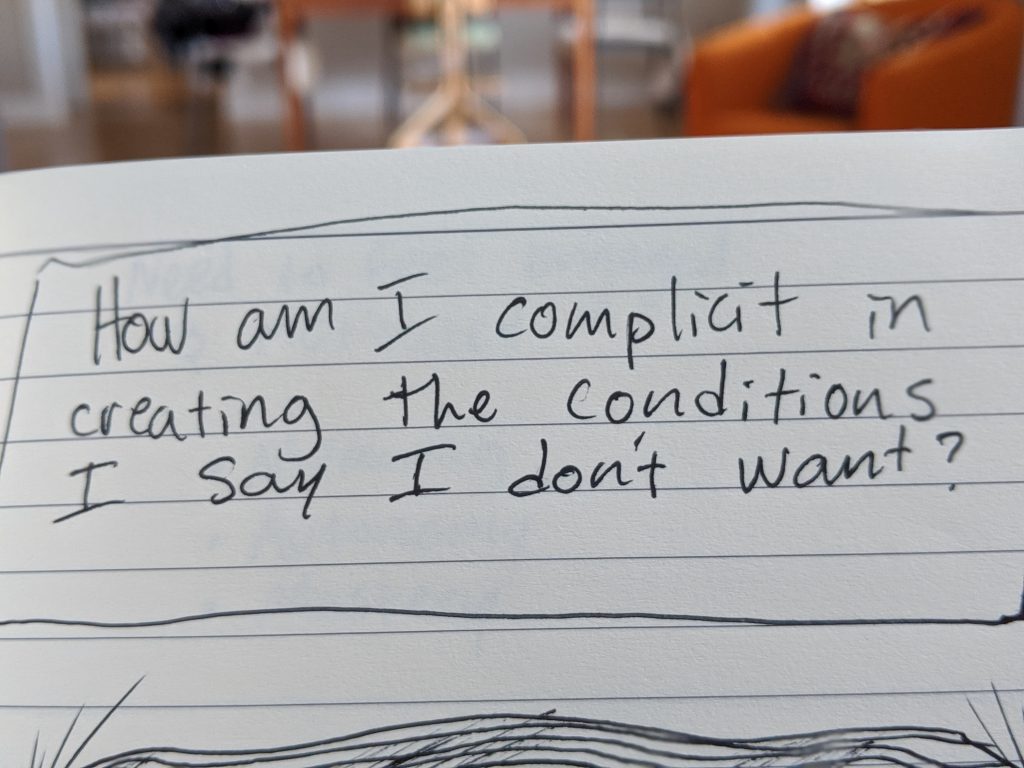
    How am I complicit in creating the conditions I say I don’t want?

    The number one indicator of a high performing team is psychological safety.

    This has been obvious to see with the Prospress acquisition. Our team went from being in a safe space and clear sense of belonging to a period of lack of clarity around where we belong. Ideally, we are and can continue to work our way back to belonging, and by extension, being a high performing team.


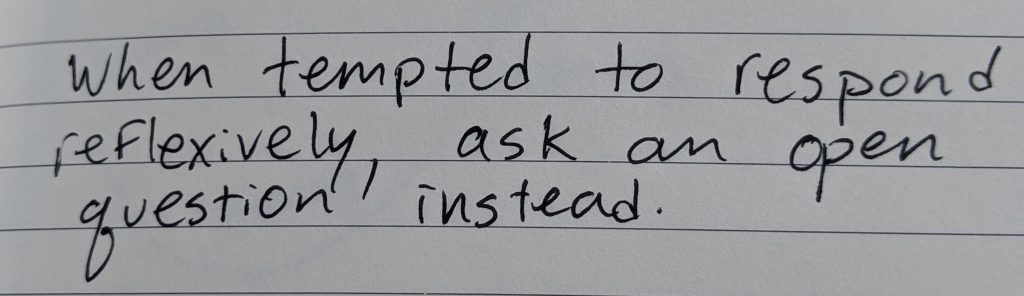
    When tempted to respond reflexively, ask an open question instead.

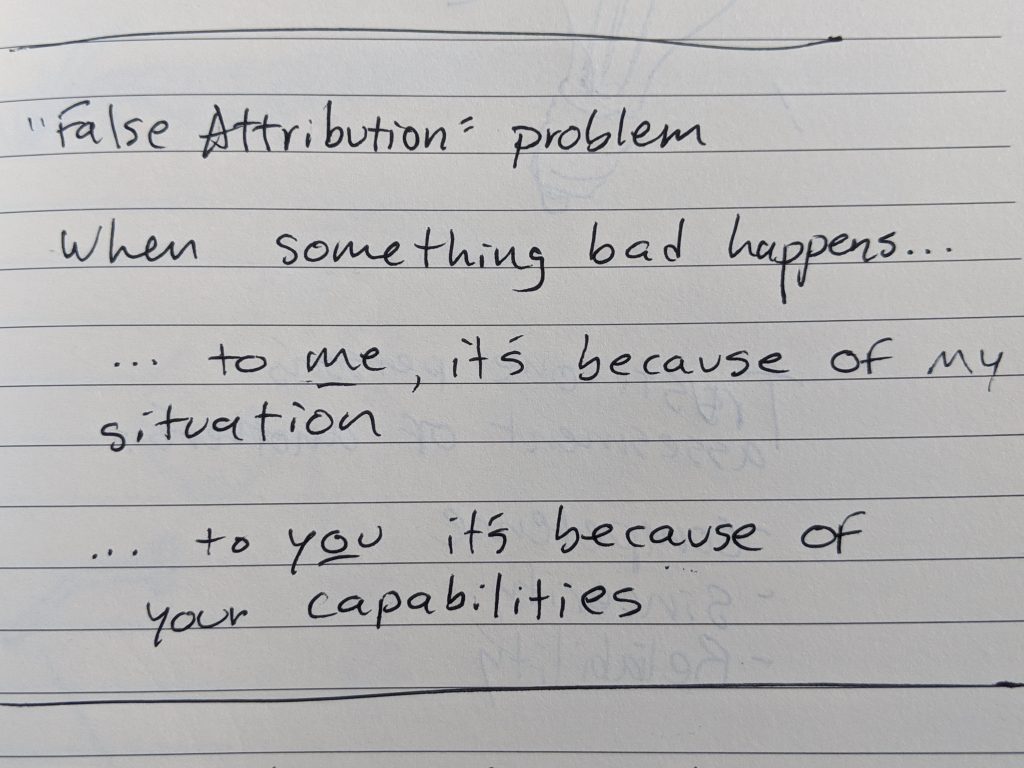
    The False Attribution problem is a mental model when people think that when something bad happens to me, it’s because of my situation, but when it happens to you, it’s because of your capabilites.

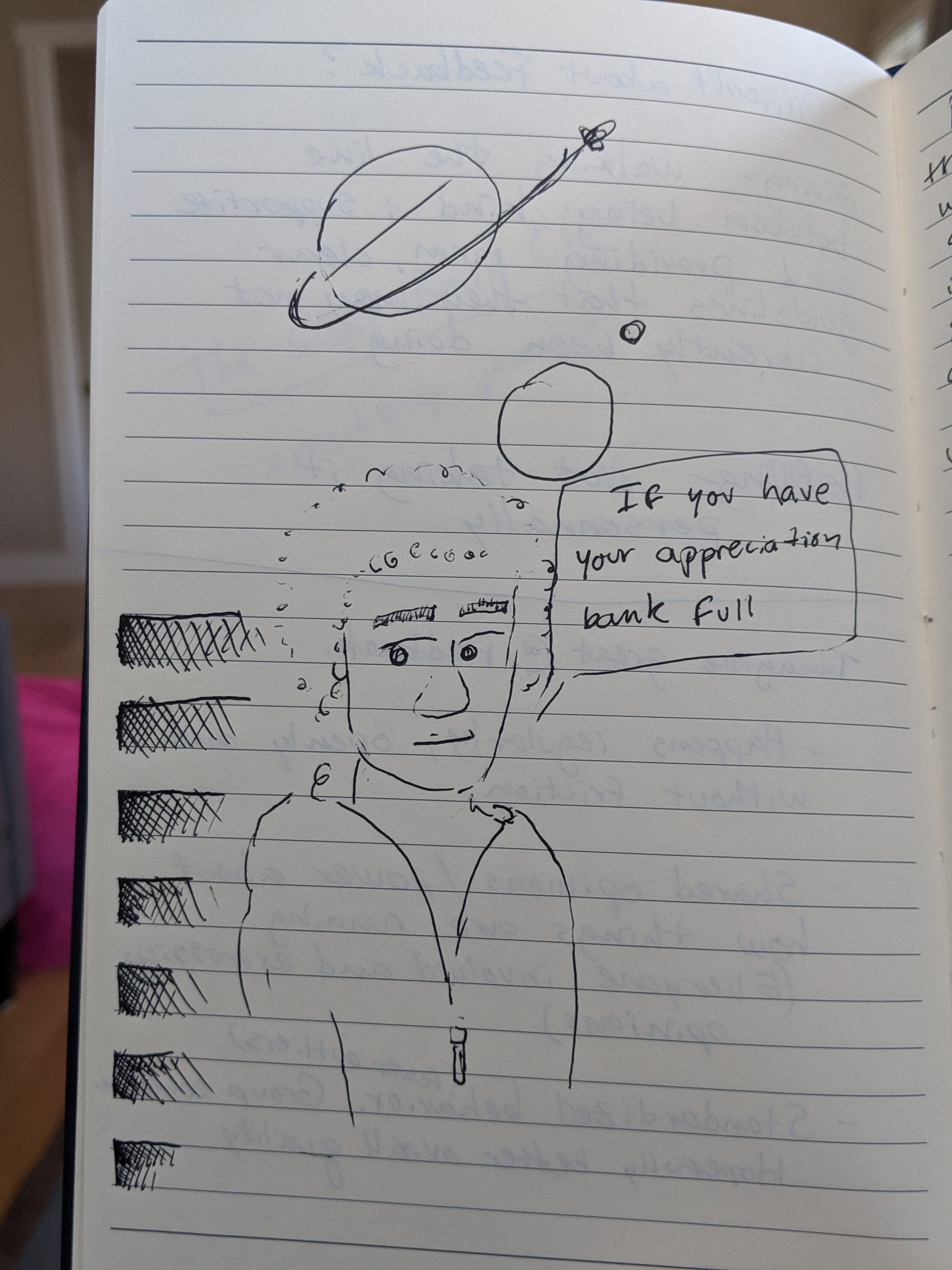
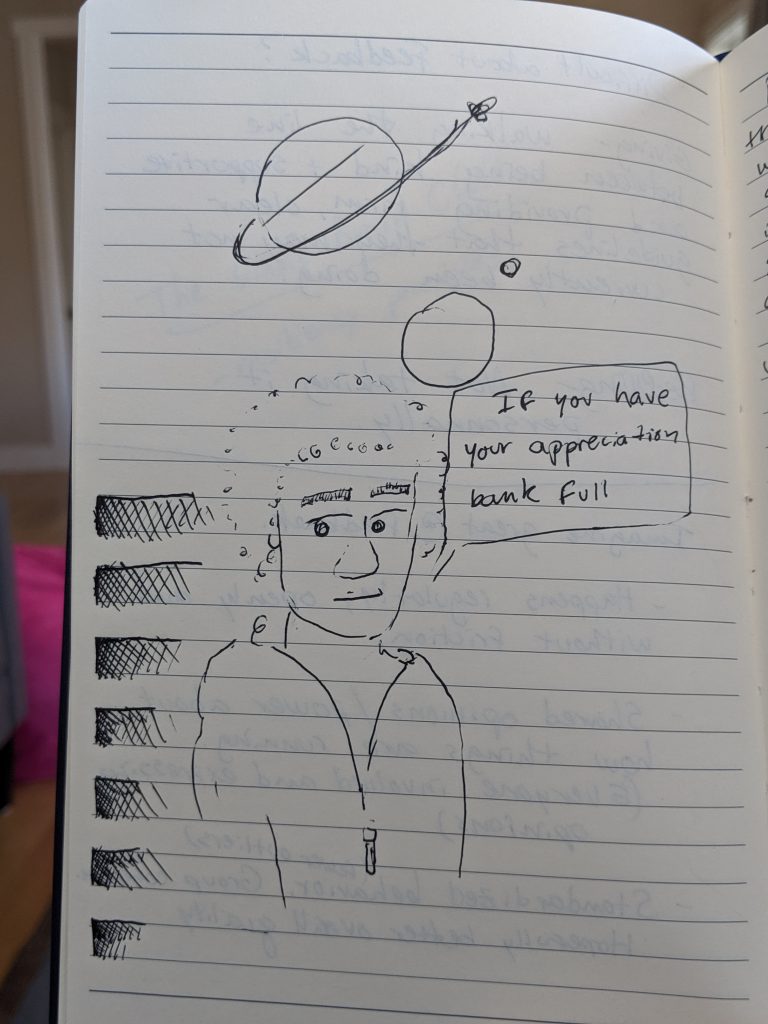
    It’s easier to receive feedback if you have your appreciation bank full.

    Asking good questions is the most underused leadership skill.

    My thoughts: what are your thoughts on that?